
From the Maker’s Bench
Insights from our network of 3d print operators and designers.
Open the model in your slicer, press the Text tool, type, and choose whether the letters stand up from the surface, cut into it, or sit flush in a second color. Bambu Studio, OrcaSlicer, PrusaSlicer and Creality Print all have that tool now. For most prints, we use Bambu Studio’s Text Shape in Arial at a Size of 6.5 mm, which is about as small as Arial prints cleanly on a standard 0.4 mm nozzle. On Cura, which has no text tool, or with no slicer at all, Tinkercad does the same job free in your browser. Both routes are below, with the font sizes we measured so the letters don’t vanish.
| You want to | Use | Jump to |
|---|---|---|
| Put a name or label on a model you already slice | Your slicer’s Text tool | Text in your slicer |
| Do it with no slicer, or you use Cura | Tinkercad (free, in the browser) | Tinkercad steps |
| Text in a second color, flush with the surface | Text set to Modifier + a second filament | Two-color text |
| The smoothest possible lettered face | Print the text face down on a smooth plate | Smooth lettering |
| Text on its own: a sign, name tag or keychain | Tinkercad or PrusaSlicer, then export | Text as its own STL |
| Text on a curved surface | Bambu Studio or PrusaSlicer surface options | Curved surfaces |
| A logo instead of words | An SVG file and the same steps | How to modify an STL |
Decide this first, because it changes the size you need.
| Style | Looks like | Slicer setting | Watch out for |
|---|---|---|---|
| Raised (embossed) | Letters stand up from the surface | Part (Bambu) / Added (PrusaSlicer) | Keep it 0.6–1 mm tall: three to five layers at 0.2 mm |
| Engraved (debossed) | Letters cut into the surface | Cut (Bambu) / Subtracted (PrusaSlicer); Hole in Tinkercad | Grooves need to be about 1 mm wide, so go bigger than for raised text |
| Flush, second color | Smooth surface, letters in another color | Modifier + a second filament | Needs an AMS or another multi-material setup |
| Cut-through (stencil) | Letters cut all the way through a plate | Cut, deeper than the plate | O, A, B, D, P, Q and R lose their centers unless you use a stencil font |
This is where most text goes wrong. A 0.4 mm nozzle lays down lines about 0.42 mm wide, so any stroke of a letter thinner than that prints as a smudge or not at all. Font size alone doesn’t tell you the stroke width, so we measured it: we rendered every letter and digit of common fonts and found the thinnest stroke in each. The Size field in Bambu Studio and the Height field in PrusaSlicer and OrcaSlicer set the font’s full height (the em), so capital letters come out at about 70% of the number you type.
| Font | Smallest Size, 0.4 mm nozzle | Crisp (two lines per stroke) | Smallest Size, 0.2 mm nozzle |
|---|---|---|---|
| Arial | 6.0 mm | 12.0 mm | 3.1 mm |
| Arial Bold | 5.2 mm | 10.4 mm | 2.7 mm |
| Arial Black | 4.5 mm | 8.9 mm | 2.3 mm |
| Verdana Bold | 4.1 mm | 8.2 mm | 2.1 mm |
| Comic Sans Bold | 3.5 mm | 7.0 mm | 1.8 mm |
| Times New Roman | 20.7 mm | 41.4 mm | 10.8 mm |
How to read it: at the first number, most strokes print as a single line. That’s fine for a label. At the second, every stroke gets two lines and the letters look sharp. Our Arial at 6.5 mm sits just above Arial’s 6.0 mm limit, with capitals about 4.7 mm tall. Switch to Arial Bold or Arial Black and you can go a millimeter or so smaller with the same result. Skip Times New Roman and other serif fonts for small text: their hairline strokes are a fifth the width of Arial’s and disappear below about 20 mm. Avoid Impact for small lettering too: it prints, but the holes in a, e and o close up.
A few more rules from the same numbers. The thinnest spots in every sans-serif font are where diagonal strokes meet, in x, X and k, so check those letters in the preview first. Engraved text needs grooves about a millimeter wide, so use the crisp column for it. For lettering smaller than the table allows, we swap in a 0.2 mm nozzle, which halves every limit. Put text on a top face where you can: letters on a vertical wall are built from stacked layers and lose detail at small sizes.
Need lettering smaller than this, wrapped around an odd shape, or matched to a brand? Chat with one of our design engineers; it’s free to ask.
| Slicer | Open the tool | Raised / engraved / flush | Curved surfaces |
|---|---|---|---|
| Bambu Studio | Select the model, then Text Shape in the top toolbar | Part / Cut / Modifier | Surround surface and projection modes |
| OrcaSlicer | Same tool as PrusaSlicer: select the model, press T | Same as PrusaSlicer | Use surface |
| PrusaSlicer | Press T, or right-click the model → Add part → Text | Added / Subtracted / Modifier | Use surface (up to 90°) |
| Creality Print | Text embossing tool (version 5.1.2 and later) | Raised or engraved | Depends on version |
| UltiMaker Cura | No text tool | Make the text in Tinkercad | – |
1. Select the model and click Text Shape in the top toolbar. 2. Type your text, pick the font (we use Arial) and set Size; ours is 6.5 mm. Bold and Italic are next to the font. 3. Choose the operation: Part for raised letters, Cut for engraved, Modifier for flush letters in another color. 4. Click the face where the text should go and drag it into place; Thickness sets how tall raised letters stand, Embedded Depth how far they sink into the surface. Recent versions also take more than one line of text: press Enter.
Then slice and look at the preview at the top layers. If any letter shows gaps or missing strokes, raise the Size or switch to a bolder font before you print.
OrcaSlicer took PrusaSlicer’s text tool, so they work the same way. Select the model and press T (in PrusaSlicer you can also right-click the model → Add part → Text). Type the text, pick a font (any TrueType font installed on your computer works), set Height, then choose Added (raised), Subtracted (engraved) or Modifier. Drag the text onto the face you want; it snaps to the surface.
Cura has no built-in text tool; there is an open feature request for one. The quickest way round it is to add the text in Tinkercad below, export the combined STL, and open that in Cura.
Tinkercad is Autodesk’s free 3D editor, and it runs in your browser. It takes STL and OBJ files under 25 MB. Our example is a penguin utility case from Thingiverse; any STL works the same way. New to it? Our beginner’s guide to Tinkercad covers the basics, and the video on this page walks through these steps.
Click Create, then 3D design. Click Import, choose your STL and check the units are set to millimeters before it loads.


In the Basic Shapes panel on the right, find Text and drag it onto your model. Type your words in the Text field of the Inspector, the shape’s settings panel, and pick a font there.

Hold Shift and drag a corner handle to scale the text evenly, or click a dimension and type it. Tinkercad measures the whole block of text, not the font, so measure a capital letter instead: keep capitals at least 4.5 mm tall in Arial (about 3.7 mm in Arial Bold) on a 0.4 mm nozzle, and make the text 0.6–1 mm thick.

For raised letters, lift or lower the text so it sinks about half a millimeter into the surface and stands up above it; text that only touches the surface can print as a loose layer. For engraved letters, set the text to Hole in the Inspector and push it into the surface as deep as you want the grooves.
Select everything (Ctrl+A) and click Group. That merges the letters with the model, or cuts them out if they’re a hole. Then Export and choose .STL. Open the file in your slicer and check the letters in the preview.
No printer? Upload the exported STL and one of our makers prints it and ships it to you.
Contrast is what makes small lettering readable: black on white or white on black. There are two ways to get it.
With an AMS or another multi-material setup: this is how we do flush lettering. In Bambu Studio, set the Text Shape to Modifier and give it the second filament in the object list. The surface prints perfectly flat and smooth, and only the color of the letters changes. Raised text works too: assign the text part its own filament.
With one nozzle and one spool at a time: make the text raised, slice, and drag the preview’s layer slider to the first layer of the letters. Add a pause or color change there (PrusaSlicer has a + button on the slider for it and inserts M600). The printer stops, you swap filament, and everything above that layer, which is only the letters, prints in the new color. Use the same type of filament for both.
Two-color text kit
A matte black and matte white pair we buy and run: ELEGOO Matte PLA. The matte surface doesn’t glare, so small letters stay readable from any angle.
Add both to your Amazon cartAmazon shows both items for you to confirm before anything is added. Or check Matte Black or Matte White on its own.
For the smoothest lettering, we turn the print over so the lettered face sits on a smooth build plate. Flush text set to Modifier works best this way: the face comes out as flat as the plate, with the letters in the second color. Place it lettering-down in the slicer, then change a few filament settings. These are ours for PLA in Bambu Studio:
| Setting (Bambu Studio filament profile) | Where | Our value |
|---|---|---|
| Flow ratio | Filament tab | 1.02 |
| Recommended nozzle temperature, Min | Filament tab | 230°C |
| Smooth PEI Plate, initial layer | Filament tab, Print temperature | 60°C |
| Nozzle, initial layer | Filament tab, Print temperature | 230°C |
| Part cooling fan, initial layers | Cooling tab | 0% for the first 2 layers |
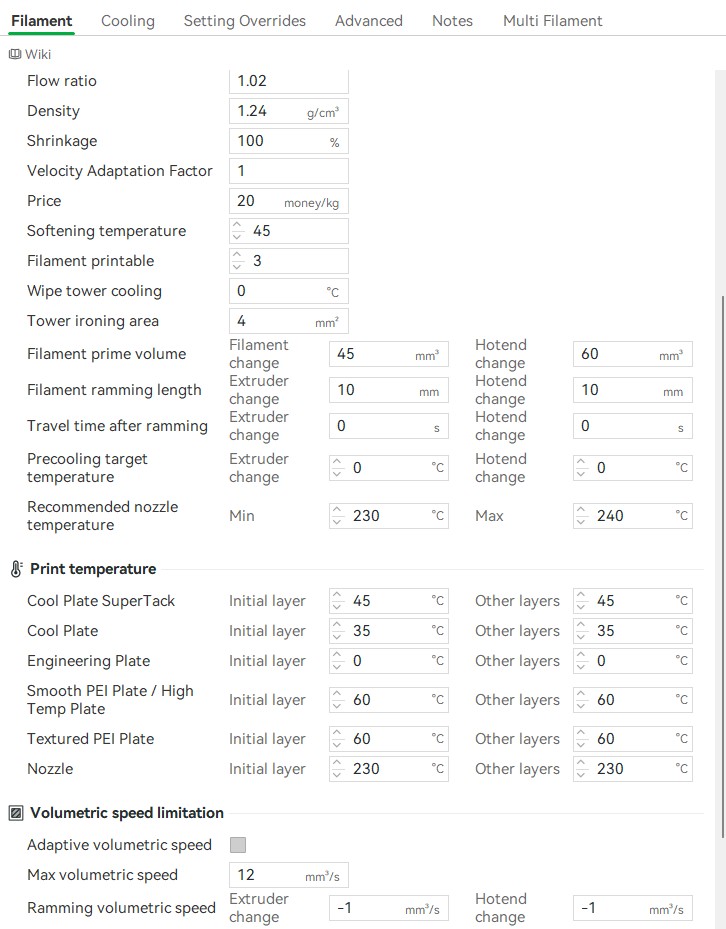
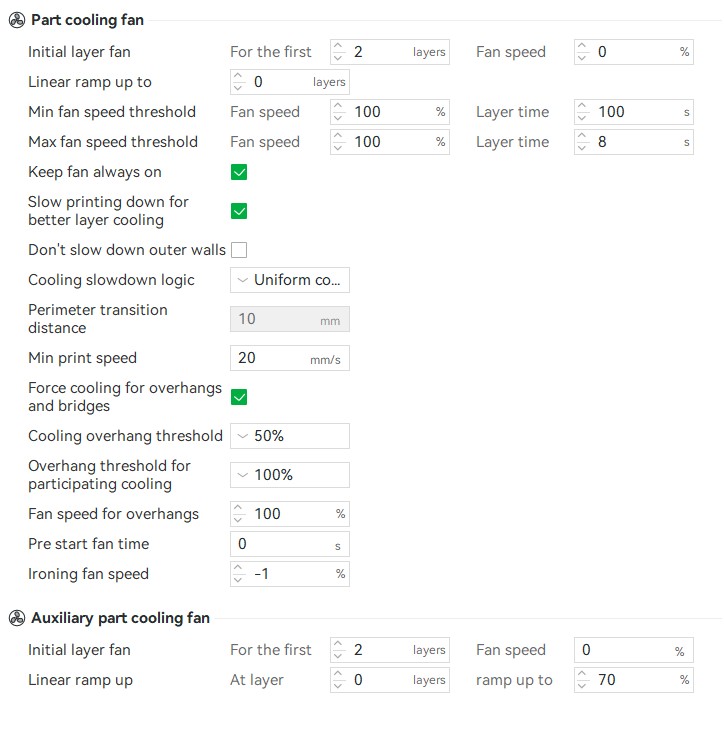
The hotter, slightly over-extruded first layers with no fan press the plastic flat against the plate, so the lettered face has no gaps between lines. Save it as a separate filament profile so your normal prints keep their settings.
If you want the words themselves as a part, skip the import. In Tinkercad, drag a Box onto the workplane as a base plate (2–3 mm thick is plenty), drop a Text shape on top so it sinks into the plate, add a Cylinder set to Hole near one end if it’s a keychain, Group and export the STL. In PrusaSlicer, right-click the empty bed and choose Add shape → Text, then File → Export → Export plate as STL.
For a cut-through stencil, pick a stencil font, one with small bridges across the letters, so the middles of O, A and D stay attached.
Flat text on a curved face leaves some letters floating and others buried. Bambu Studio’s Text Shape can wrap the text around the surface (the Surround modes), and PrusaSlicer and OrcaSlicer bend it along the face with Use surface; PrusaSlicer’s limit is a 90° curve. If you have the original CAD file, Fusion’s Emboss command wraps text onto curved faces cleanly. An STL opened in Fusion is a mesh, though, and embossing onto it is slow going, so for a downloaded STL the slicer is the better tool.
Tight curves, small text and a part that has to look professional is exactly the job our design engineers take on.
Open it in a slicer with a text tool (Bambu Studio, OrcaSlicer, PrusaSlicer or Creality Print), select the model, add text, choose raised, engraved or flush, and place it on the face you want. Without one of those, import the STL into Tinkercad, add a Text shape, group and export.
Yes. Tinkercad runs in your browser and is free: import the STL, drag in the Text shape, group, and export a new STL.
Select the model, click Text Shape in the top toolbar, type, set the font and Size, choose Part, Cut or Modifier, and click the face where it goes. We use Arial at Size 6.5 mm.
Cura has no text tool. Add the text in Tinkercad, export the STL, and open that in Cura.
In Tinkercad, put a Text shape on the workplane (on a thin box if you want a plate behind it), group and export as STL. In PrusaSlicer, right-click the empty bed, Add shape, Text, then export the plate as STL.
On a 0.4 mm nozzle, about Size 6 mm in Arial or 4 mm in Verdana Bold, with capital letters 3–4.5 mm tall. A 0.2 mm nozzle halves that. Resin printers go much smaller.
Set the text to Cut (Bambu Studio), Subtracted (PrusaSlicer) or Hole (Tinkercad) and sink it 0.5–1 mm into the surface. Make the grooves about 1 mm wide by using the larger sizes in the table above.
With an AMS, set the text to Modifier or give the text part a second filament. With one nozzle, add a pause or color change at the first layer of raised letters and swap the spool.
| Job | Tool | Setting |
|---|---|---|
| Label a model you already slice | Bambu Studio Text Shape (or PrusaSlicer/Orca, T) | Arial, Size 6.5 mm or more |
| No slicer text tool | Tinkercad Text shape | Capitals 4.5 mm+, 0.6–1 mm tall, Group |
| Engraved letters | Cut / Subtracted / Hole | Grooves about 1 mm wide, 0.5–1 mm deep |
| Flush color letters | Modifier + second filament | AMS or multi-material |
| Smoothest lettered face | Text face down on a Smooth PEI plate | Flow 1.02, 230°C nozzle, no fan for 2 layers |
| Black and white filament | ELEGOO Matte PLA | Black White |
| Tiny, curved or branded lettering | A design engineer | Free to ask |
Got your file ready? Upload it for an instant quote, and one of our makers prints it and ships it to you.
*Some links in this guide are Amazon affiliate links. As an Amazon Associate, Intagly earns from qualifying purchases, at no extra cost to you.